
Map
Navigate and configure the map view
The map is the central element of the Hydris interface, displaying entities, sensor coverage, and geospatial data in real time. It appears in every layout preset and can be configured using the controls on the right side.
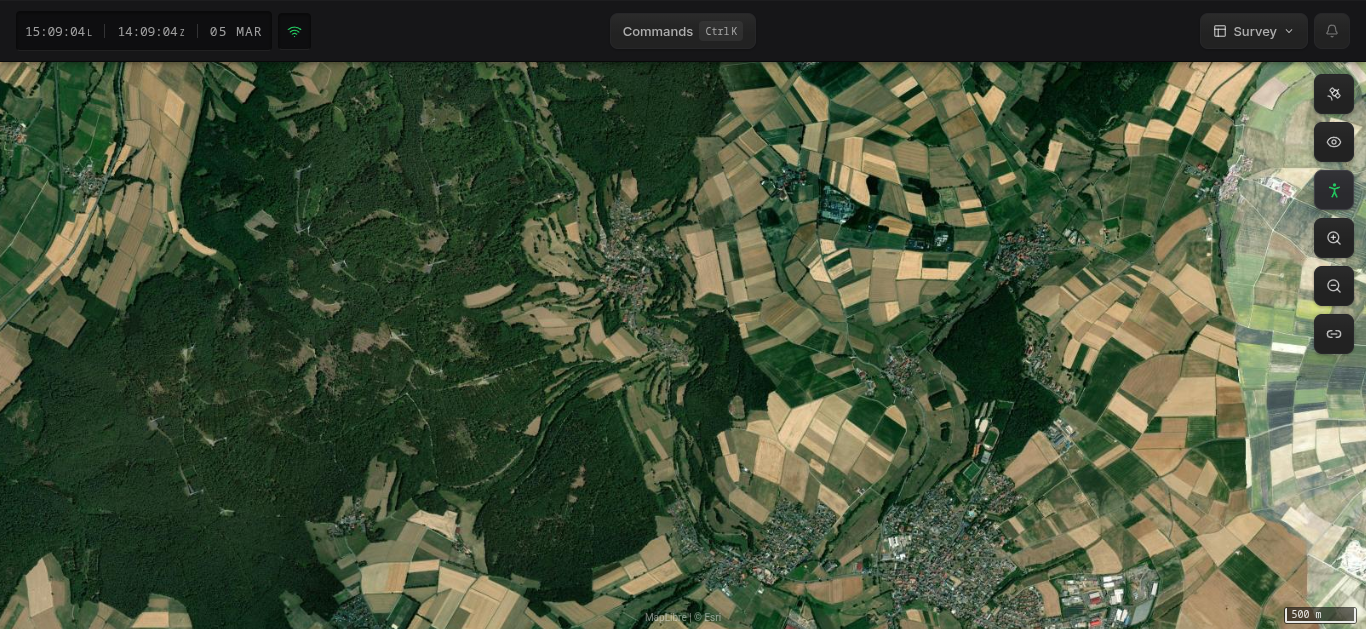
Map Controls
The map toolbar sits on the right edge of the map. From top to bottom:
| Control | Description |
|---|---|
| Base Layer | Switch between Dark, Satellite, and Street map styles |
| Overlays | Toggle visibility of tracks, sensors, and other layers |
| Range Rings | Place an observer reference point to visualize distances |
| Zoom In / Out | Adjust the map zoom level |
| Share | Generate a link to the current view or focused entity |
Base Layer
Click the base layer button to choose between three map styles:
- Dark — Dark-themed map, reduces eye strain in low-light environments
- Satellite — Aerial imagery from Esri
- Street — OpenStreetMap-based street map with labels and roads
You can also switch base layers from the command menu (Ctrl+K / ⌘+K) using the Switch to dark/satellite/street map commands.
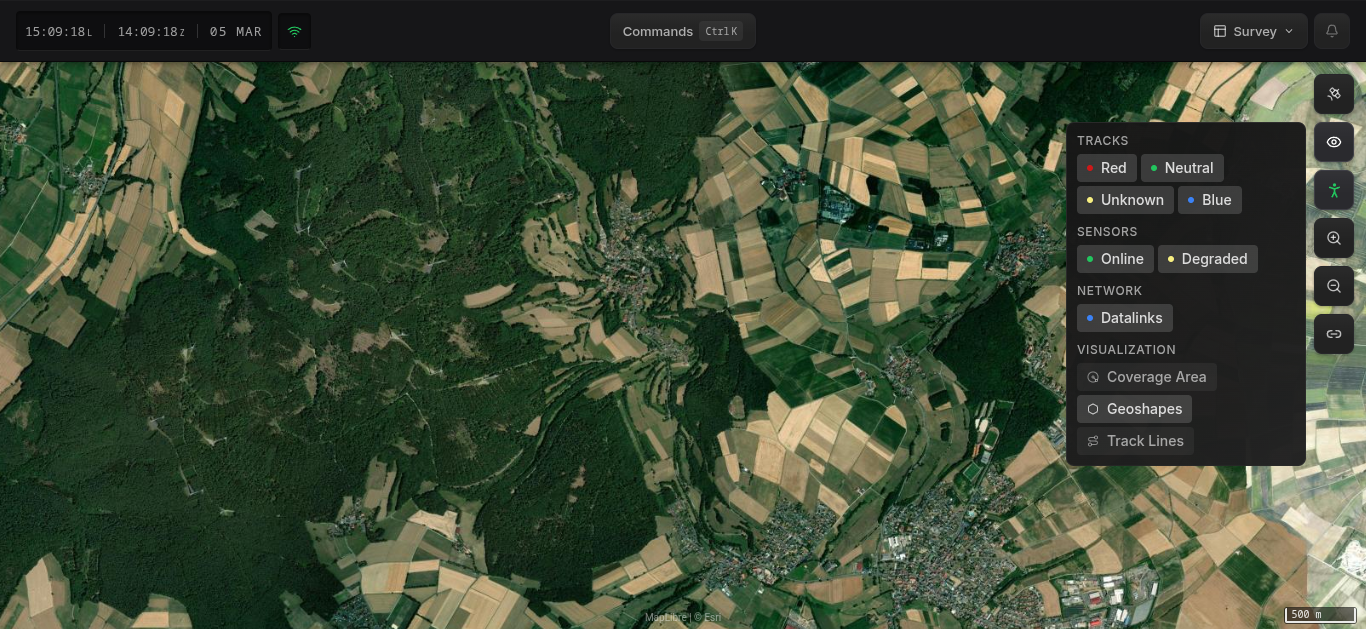
Overlays
Click the overlays button to toggle which layers are visible on the map.
Range Rings
Range rings let you place an observer reference point on the map to visualize distances from that position.
- Click the Range Rings button (person icon) in the map toolbar
- Click anywhere on the map to set the observer position
- Concentric rings will appear around the reference point, showing distance intervals
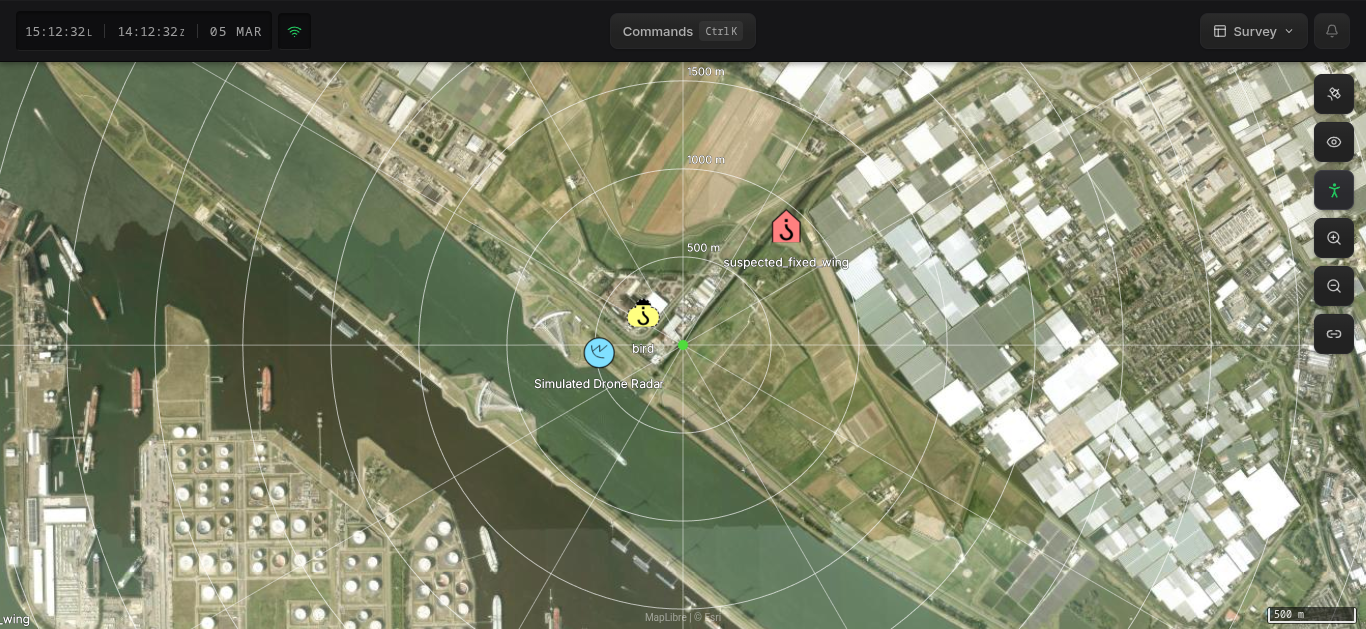
This is useful for estimating how far entities are from a fixed position such as your own location or a point of interest.
Sharing
Click the Share button to generate a shareable link:
- Share focus — Creates a link to the currently selected entity or map position. When someone opens this link, their view will center on the same entity or coordinates.
- Share view — Creates a link that captures the full state: layout preset, active layers, filters, and map position. Use this to share your exact working setup with a colleague.
Navigation
- Pan — Click and drag the map
- Zoom — Scroll wheel, pinch gesture, or use the zoom buttons
- Search — Open the command menu with
Ctrl+K(or⌘+K) and select Search for a location to jump to a specific place or entity