
Build a Mission
Compose, export, and share complete mission configurations—even offline
A mission pack is a single .zip that captures a node's entire mission setup—enabled plugins, data sources, comms settings, layouts, and media. Compose the capability set for your mission once, export it, and hand it to any other node: over the network, on a USB stick, or across a mesh link. Loading a pack requires no connectivity, which makes it the natural way to distribute mission sets in the field.
What's in a Mission Pack
Your world entities are always included—and because plugin selections, data-source configuration, and comms settings all live as entities, the pack carries the full working setup, not just the map. On top of that, you choose what else goes in when exporting:
- Layouts — your saved dashboard layouts
- Media & files — camera snapshots and other attached files
- Access policy — rules for who can connect and make changes
Each pack also records a summary of its contents: the entity count, layout names, and the number and total size of bundled files. Mission health shows these back to you after loading.
Exporting
- Press
Ctrl+K(or⌘+Kon macOS) and select Export mission pack. - Choose what to include—entities are always in; toggle Layouts, Media & files, and Access policy as needed.
- Export downloads the pack as a
.zip.
Loading
Press Ctrl+K (or ⌘+K on macOS), select Load mission pack, and pick the .zip.
Loading a mission pack replaces the node's current world—all existing entities, including persisted data, are cleared before the pack is applied (the same reset as Reset world). If you need to keep the current setup, export it as a mission pack first.
After loading, the node adopts the pack's configuration and brings the mission up. Plugins referenced by the pack start with their carried configuration. Their OCI images go inside the pack as artifacts, so they work offline without a registry.
Sharing and Offline Distribution
A mission pack is just a file—share it however your environment allows: file share, USB stick, mesh transfer. The receiving node loads it entirely offline.
For a fully offline map as well, load a .mbtiles tileset via Import offline map in the command menu—map tiles aren't part of a standard export.
Verifying with Mission Health
After a pack loads, the Mission health panel opens automatically so you can check the result. Reopen it any time from the command menu: Ctrl+K → Mission health. Until a mission is loaded, it reads No mission loaded.
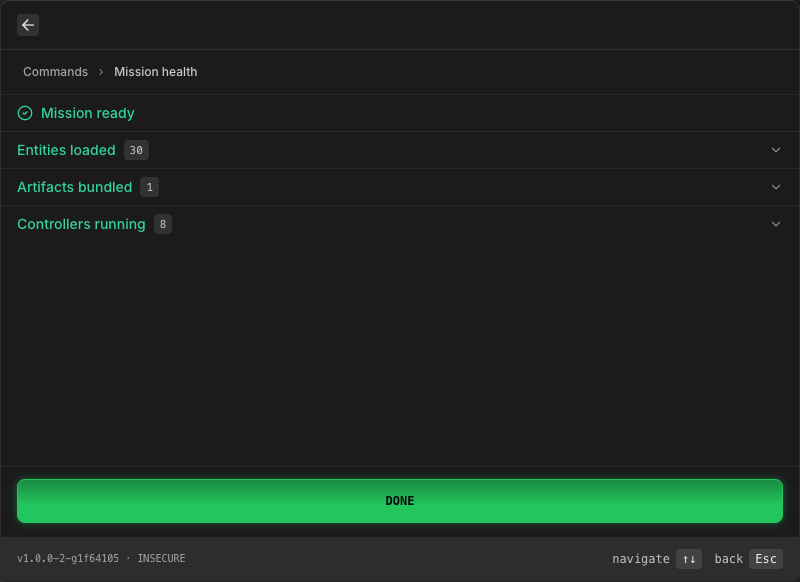
The header gives the verdict:
- Mission ready — no controller failed to start.
- Imported with issues — at least one controller failed. Controllers that are still starting do not trip this.
Each part of the pack gets a collapsible row. Expand a row for the details.
| Row | What it shows |
|---|---|
| Entities loaded | How many entities the pack brought in. Expand it to fetch the current world entity list (the first 200 IDs). The header count is the value the pack recorded. The list is live world state, so the two can differ. |
| Layouts loaded | The named layouts the pack carried. |
| Artifacts bundled | How many bundled files the pack shipped and their total size. |
| Version mismatch | Appears only when the pack was built with a different version than the running engine, or when the pack didn't record which version built it. |
Controllers
Controllers are the integrations a mission runs: data feeds, sensors, and connected devices. Their status is live, so this section updates as they start up.
| Section | Meaning |
|---|---|
| Controllers running | Started and running. |
| Controllers starting | Configured but not active yet. They may still be initializing. |
| Controllers not running | Reported a failure or a conflict. Each row shows the reported error. These usually need credentials or a matching version. |
At the bottom, Done closes the panel. When a controller failed, the button reads Proceed anyway instead.
Mission health shows you the recorded counts and the live list. It doesn't diff them for you. You confirm the mission looks right by eye.