
Command Menu
The Ctrl+K entrypoint to everything in Hydris
The command menu is the fastest way to do anything in Hydris. Open it from anywhere with Ctrl+K (or ⌘+K on macOS) to run a command, jump to configuration, or search for an asset, camera, or track and fly straight to it on the map.
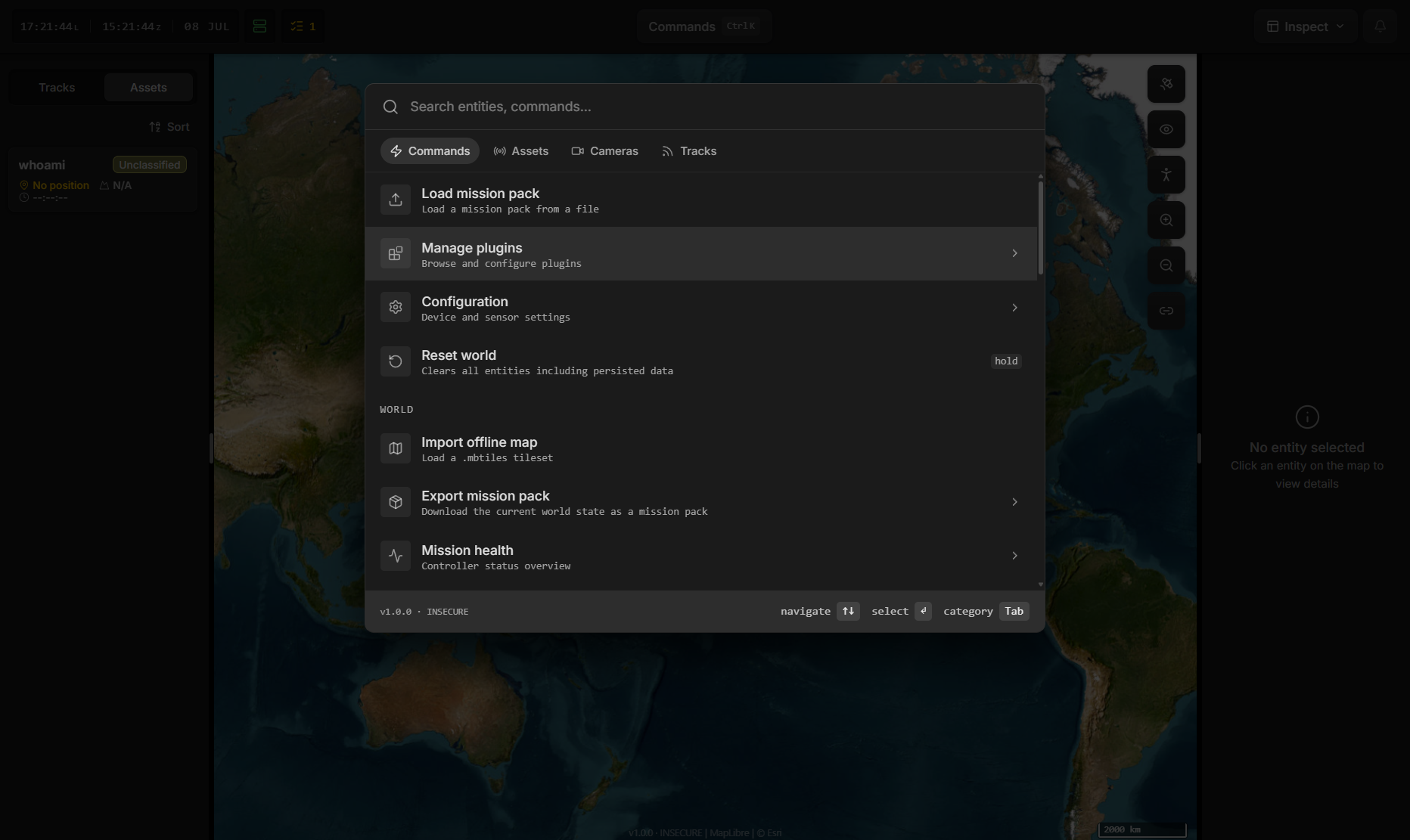
Opening the Command Menu
Press Ctrl+K (or ⌘+K on macOS) at any time, or click the Commands button in the top bar. Once it's open, just start typing—there's no need to click the search box first.
Search Anything
Start typing and the command menu searches commands, entities, and configurable devices all at once. Matches are fuzzy and the matched text is highlighted, so partial or out-of-order terms still find what you want. When there are more results than fit, a Showing X of Y hint appears—keep typing to narrow things down.
Find and Jump to Entities
The command menu doubles as an entity search. Use Tab to switch between the four categories:
- Commands — actions you can run (see below)
- Assets — your own assets, grouped by category
- Cameras — entities with a camera feed
- Tracks — everything Hydris is tracking
Selecting an entity selects it and flies the map to its location, then closes the menu—so Ctrl+K, type a callsign, Enter is often the quickest way to find something on the map.
Running Commands
The most-used commands are pinned to the top of the list: Load mission pack, Manage plugins, Configuration, and Reset world. Below them the rest are grouped by area. This isn't the full list, so open the menu and browse, but the highlights are:
- World — Load and export mission packs, Import offline map, Mission health, Asset readiness, Reset world
- Map — Search for a location, switch base layers (dark / satellite / street), zoom in and out
- Layout — Customize layout, Reset layout to preset
- Display — switch theme (dark / light / system), toggle screen lock
- Presets — switch to Inspect, Overview, Survey, or Watch
- Sharing — Copy share link (captures your current layout, layers, and filters)
A › chevron on a command means it opens a sub-view (for example, Configuration and Manage plugins open the settings tree) rather than running immediately.
Keyboard Shortcuts
| Action | Keys |
|---|---|
| Open / close the command menu | Ctrl+K / ⌘+K |
| Move the highlight | ↑ ↓ |
| Run or select the highlighted item | Enter |
| Switch category (Commands / Assets / Cameras / Tracks) | Tab |
| Go back a level, clear the search, or close | Esc |
Destructive commands are guarded by hold-to-confirm: Reset world must be held for about two seconds (via Enter or a press) before it runs, so it can't be triggered by accident.