
Layouts
Customize the Hydris interface with layout presets and widgets
Hydris ships with four layout presets, each designed for a different workflow. You can switch between them instantly and fully customize each one.
Switching Layouts
Click the layout selector in the top-right corner of the screen (or use the keyboard shortcuts) to switch between presets:
| Layout | Shortcut | Description |
|---|---|---|
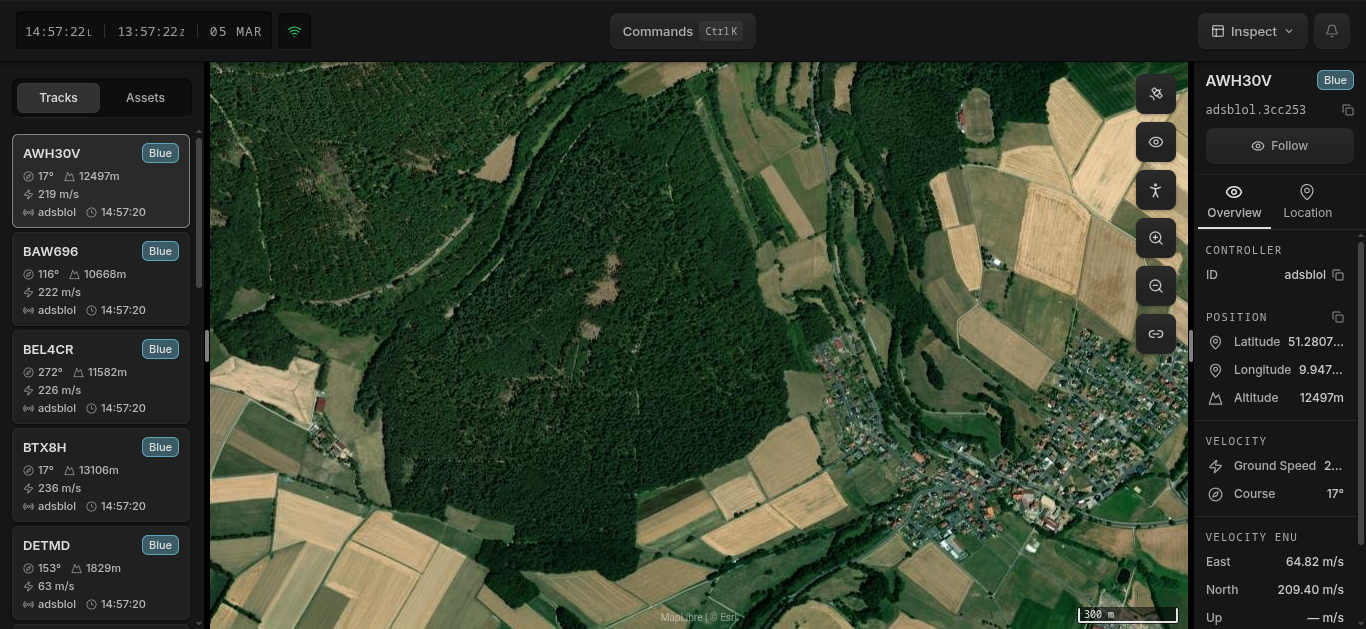
| Inspect | F1 | Best for investigating individual entities. Ideal for integrators. |
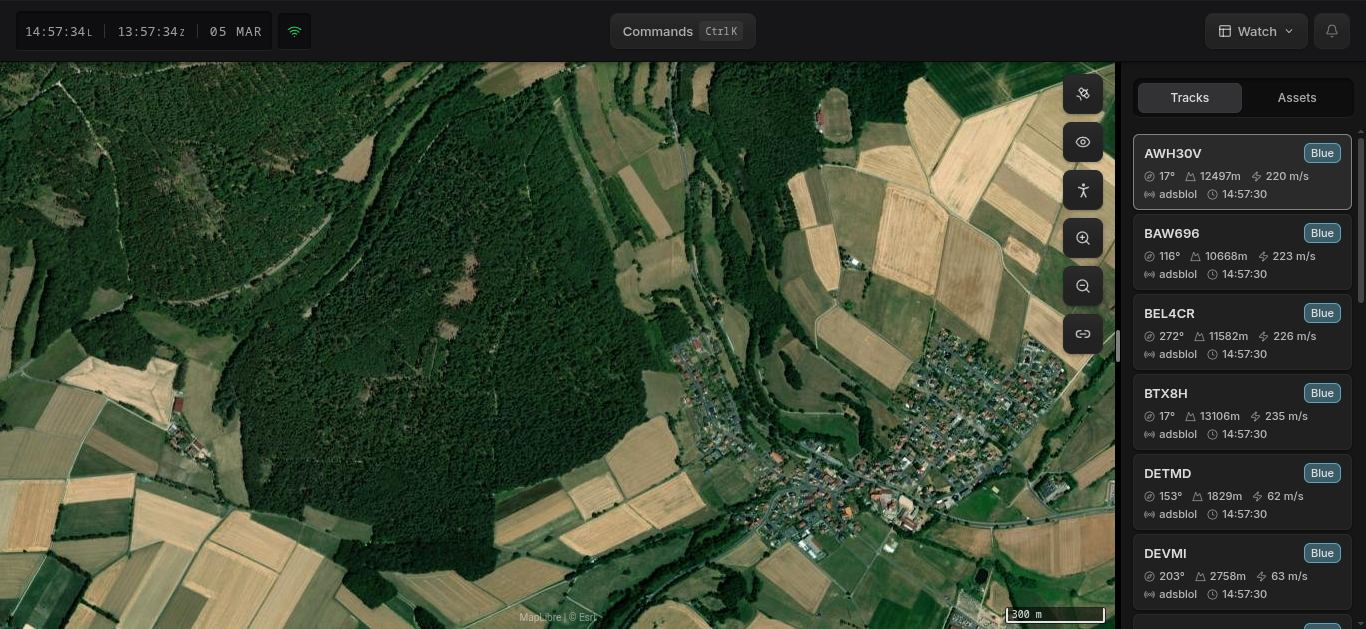
| Watch | F2 | Large map with entity list on the right. Best for monitoring. |
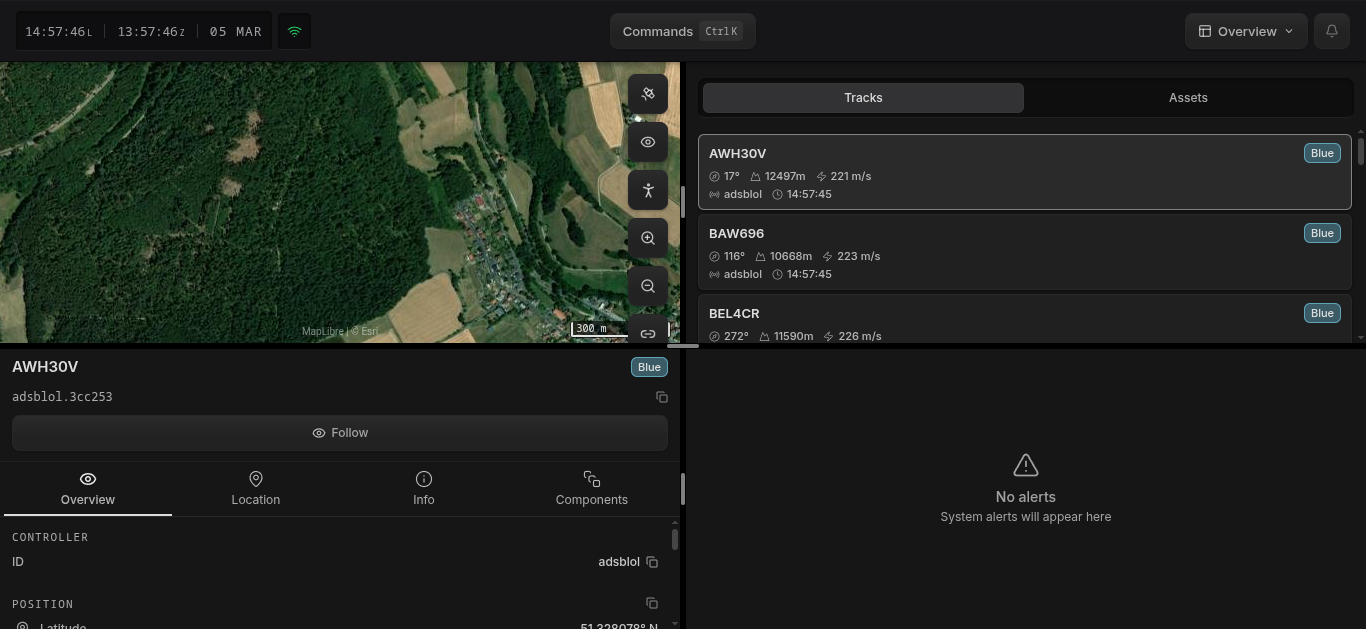
| Overview | F3 | Data driven situational awareness where map is less relevant. |
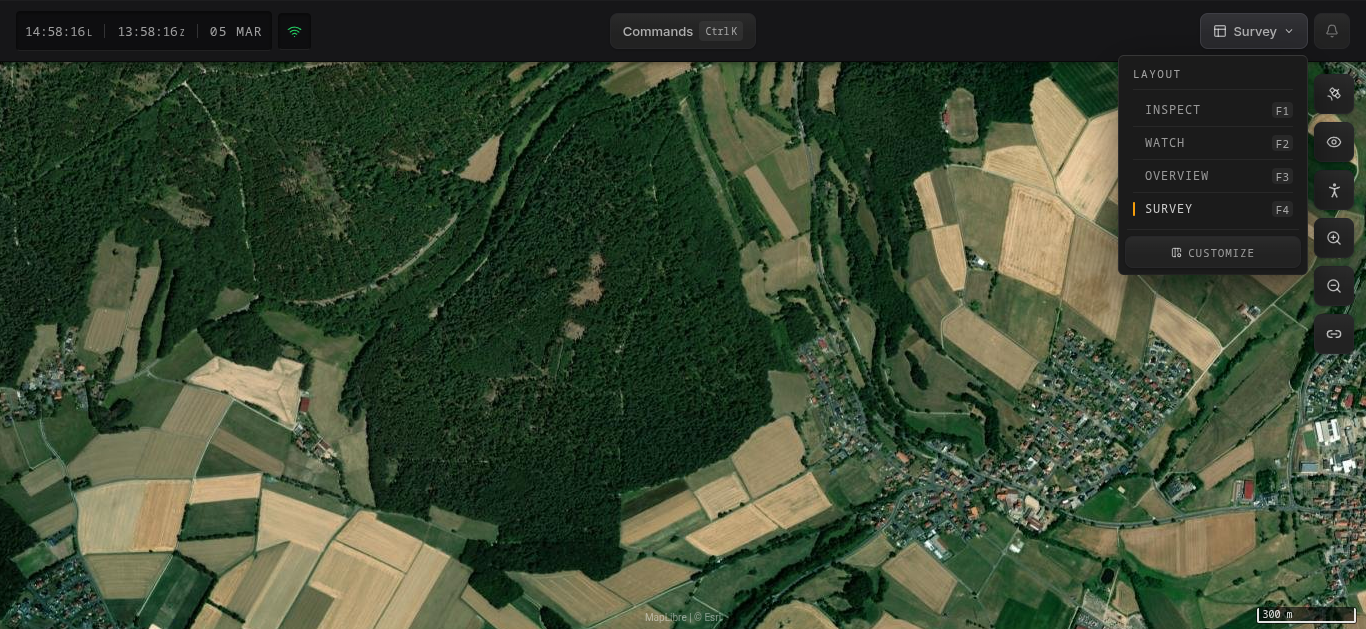
| Survey | F4 | Full-screen map. Best for purely geolocated work. |
Layout Presets
Inspect
The default layout. Three columns: entity list on the left, map in the center, and entity detail panel on the right. Use this when you need to drill into specific entities while keeping the broader picture visible.
Watch
Map-focused layout with the entity list along the right edge. The detail panel is hidden, giving the map maximum screen space. Use this for passive monitoring.
Overview
A 2x2 grid showing the map, entity list, entity detail, and alerts panel simultaneously. Use this when you need everything visible at once.
Survey
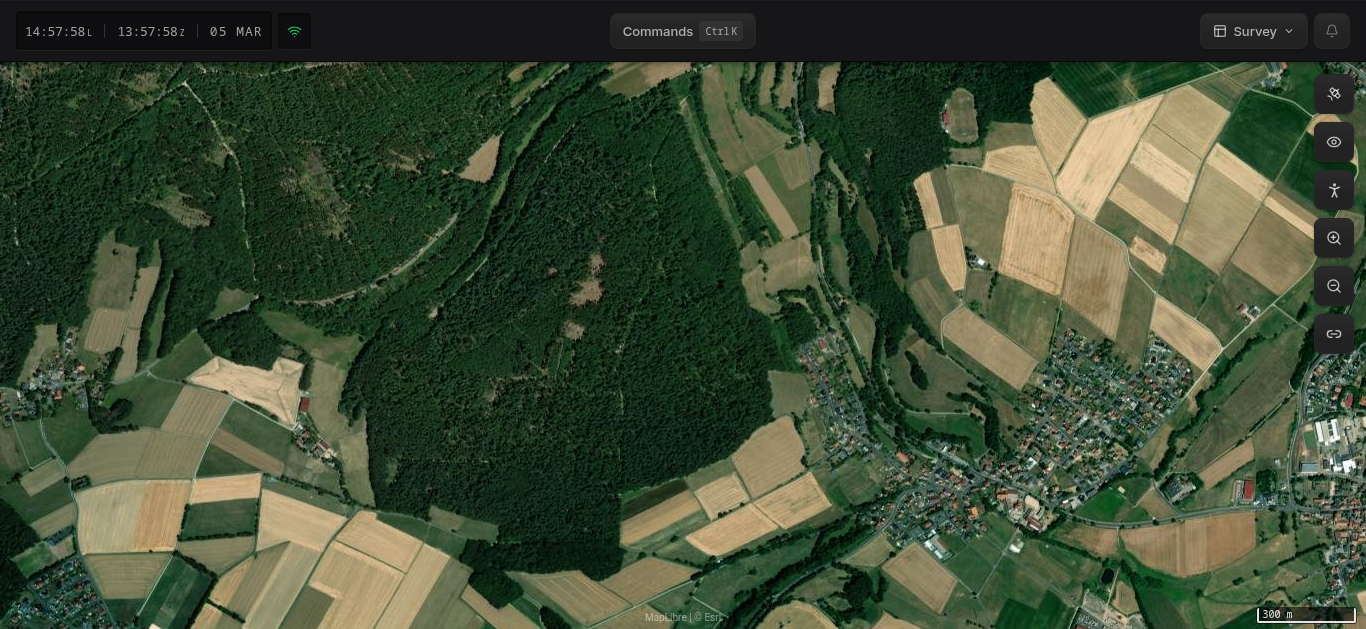
Full-screen map with no side panels. Use this for area survey, route planning, or when projecting the map on a shared display.
Customizing Layouts
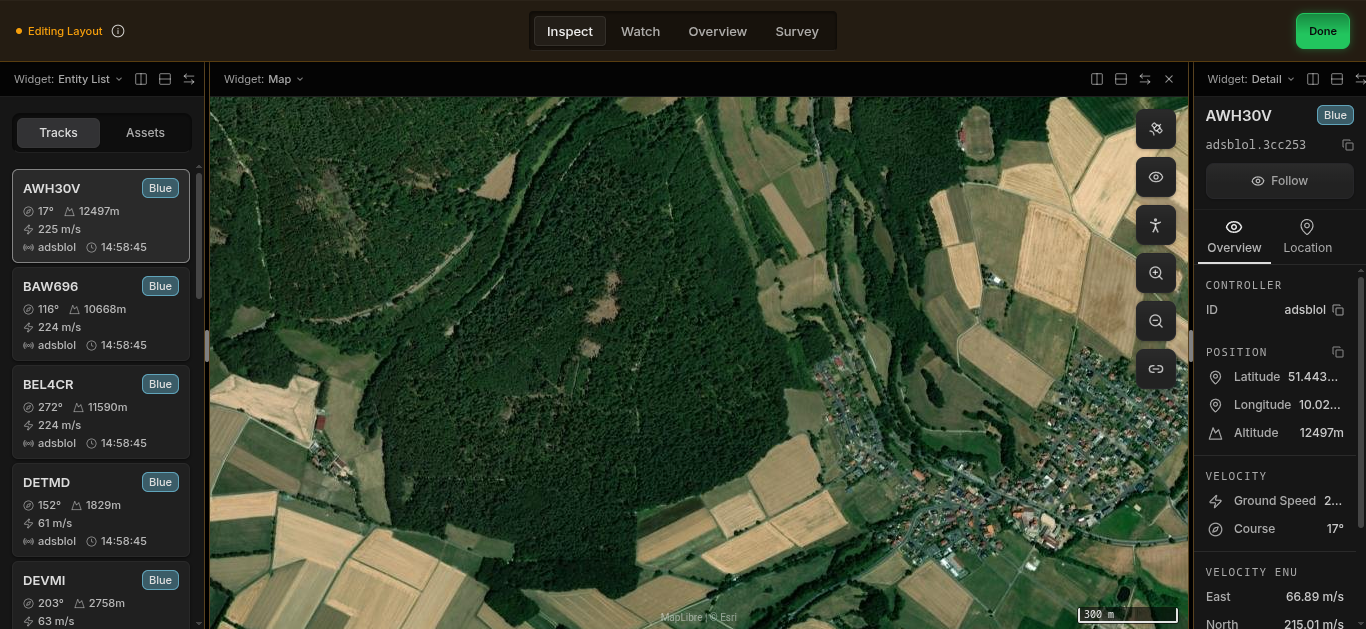
Each preset can be fully customized. Open the layout menu and click Customize, or use Ctrl+K and select Customize layout.
In customize mode, each pane shows a toolbar with:
- Widget dropdown — Change what the pane displays
- Split into columns / Split into rows — Divide the pane into two
- Swap — Swap this pane's position with another
- Remove — Remove the pane from the layout
Drag the dividers between panes to resize them. Click Done when finished.
Available Widgets
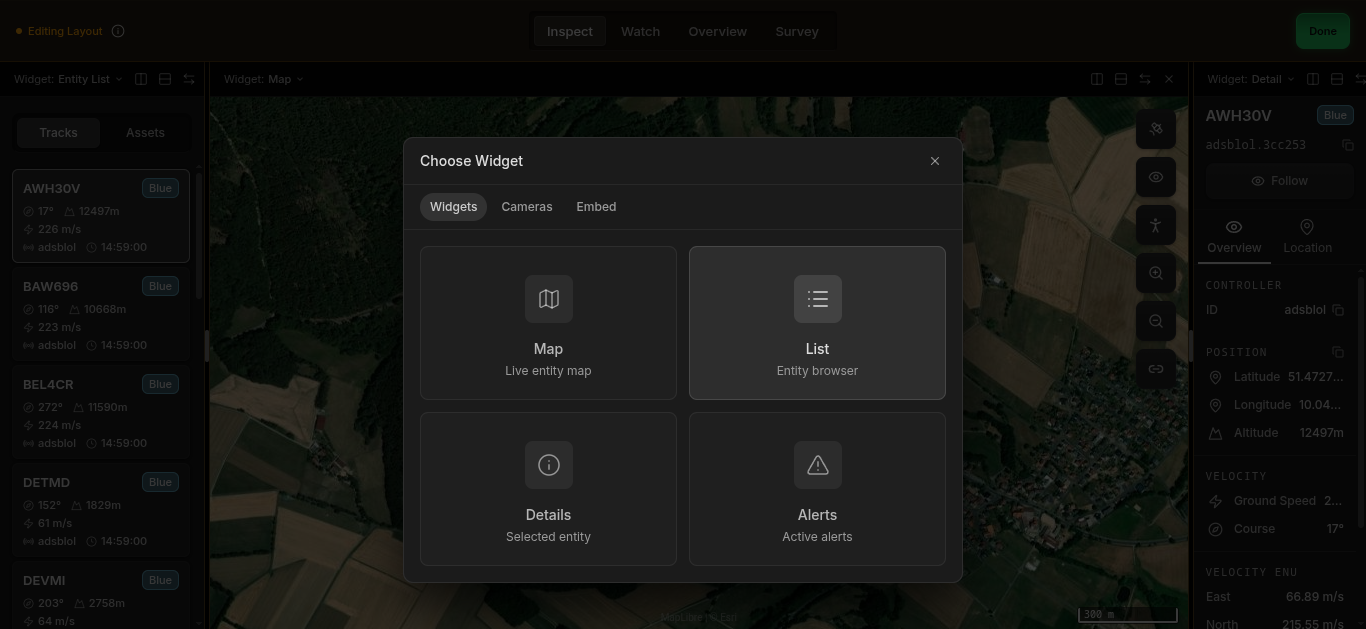
Click a pane's Widget dropdown to choose from four categories:
Layout
- Map — Live entity map
- List — Entity browser (tracks and assets)
- Details — Selected entity information
- Alerts — Active system alerts
- Chat — Team messaging
- Contacts — Sensor detections
Monitoring
- Environment — Environmental metrics
- Vitals — Heart rate, SpO₂, temperature
- Equipment — Asset condition metrics
Cameras — Embed a live camera feed from any camera entity in the system.
Embed — Embed any URL as an iframe. Useful for dashboards, external tools, or documentation.
Resetting a Layout
To reset a layout preset back to its default arrangement, open the command menu with Ctrl+K (or ⌘+K on macOS) and select Reset layout to preset.