
Task Assets
Task any connected asset from the map—aim cameras, lock onto tracks, check readiness
The Hydris picture isn't just for watching—it's taskable. Every connected asset can advertise the tasks it's able to perform, and they all surface the same way: right-click, pick a task, done.
How Tasking Works
Assets expose tasks—actions they can perform on a target. A camera might offer lock onto this track or aim at this position; other assets bring their own. Tasks aren't limited to what ships with Hydris: any integration or plugin can publish tasks for the assets it controls, and they appear alongside the built-in ones with no extra setup. As your ecosystem of plugins grows, so does what you can task.
To task an asset, right-click an entity or an empty spot on the map to open the radial menu. Alongside the built-in actions (Configure, Follow, Reposition), it shows every task available for that selection—each capable asset as its own option, so with several assets in range you choose exactly which one takes the job. Tasks target either an entity (act on this track) or a position (act on this point on the map), and the menu offers whichever fits what you clicked.
Tasking Cameras
Cameras are the richest example today:
- Lock <camera> — on an entity or track: the camera locks on and follows it as it moves
- Slew <camera> — on a map position: the camera turns to aim at that point
- Stop Tracking <camera> — shown while a camera is actively tracking, releases it
- Wiper — on Axis cameras: runs the camera's wiper/washer
Driving a Camera Directly
For hands-on control, PTZ cameras support Direct Drive—manual pan and tilt from the live video feed. It's off by default and enabled per camera:
- Select the camera and open its configuration
- Toggle Direct Drive ("Accept manual joystick control for pan and tilt") on
- Click Apply Configuration
With Direct Drive enabled, the camera's video feed becomes the control surface: drag to look around, with the same gesture working in the main video pane and picture-in-picture. Direct Drive is supported on Axis cameras and the simulated PTZ camera.
Without Direct Drive, PTZ cameras still offer tap-to-pan: chevrons on the edges of the video nudge the camera left or right.
Is It Ready to Task?
Before an asset can be tasked, it needs to be positioned, healthy, and connected. Press Ctrl+K (or ⌘+K on macOS) and select Asset readiness for the status of every asset at a glance. Whenever one or more assets aren't ready, a count also appears in the top bar. It's amber, or red if any of those assets have failed. Click it to open the same panel. When every asset is ready, the indicator disappears.
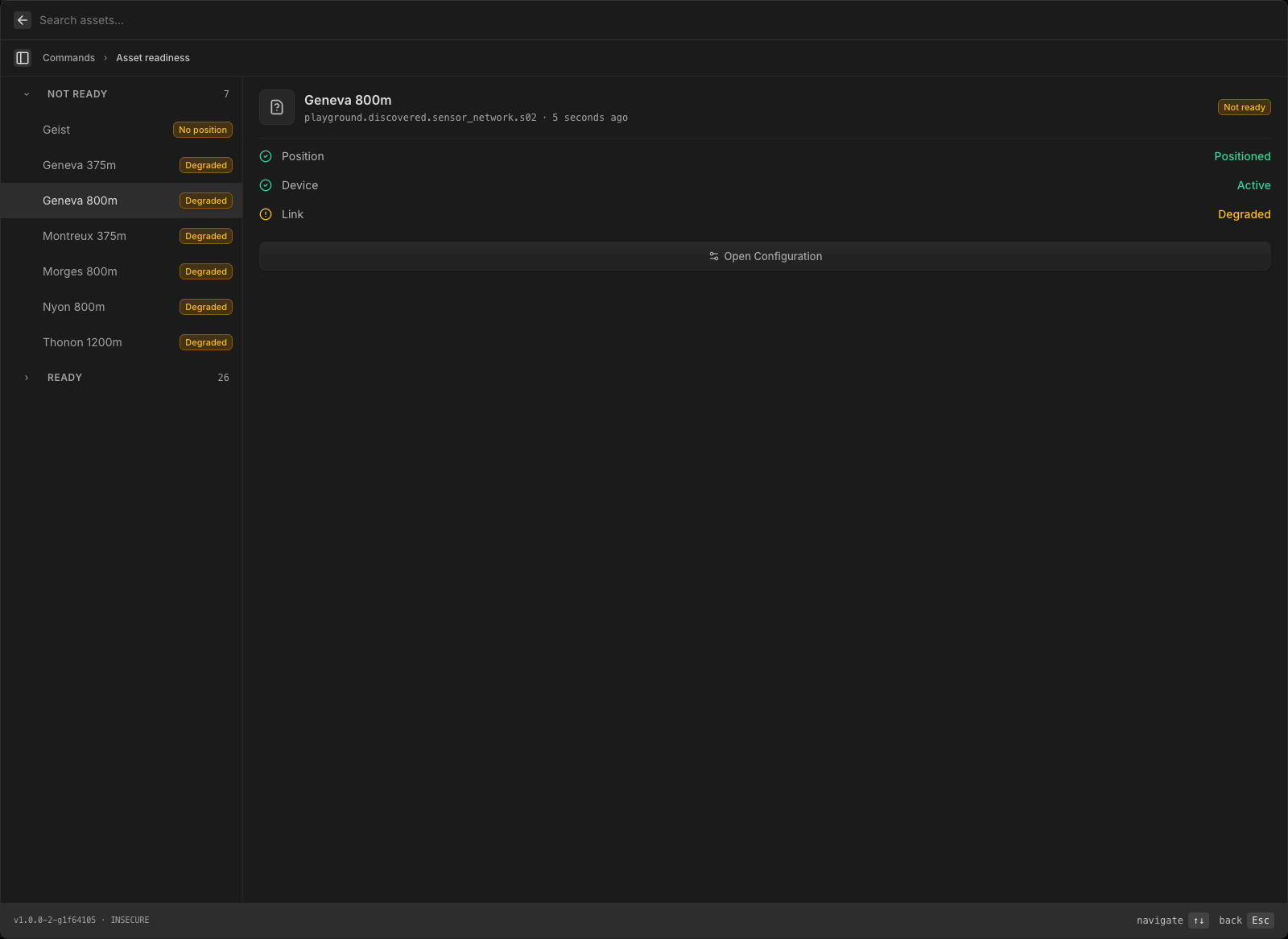
Assets are grouped into Not ready and Ready. Each row's badge shows its most severe blocker, so a hard failure is never hidden behind a softer one like a missing position.
Select an asset to see its checklist. Each one is gated on up to three things:
| Gate | Met when | Otherwise |
|---|---|---|
| Position | The asset has a location | Shows No position. |
| Device | The device reports active | Shows the device state, such as pending, degraded, or failed. |
| Link | The comms link is connected | Shows its status, such as degraded or lost. Until the device is up, the link reads Waiting for device, since a link can't connect before its device runs. |
An asset is Ready only when every gate it has is met.
The detail panel offers the fixes that fit what's blocking the asset:
- Auto position — runs the asset's positioning task, when it has one, instead of placing it by hand.
- Place on map — drop the asset on the map yourself when it has no position.
- Open Configuration — open the asset's settings to fix a device or link problem.